If you have a PowerPoint presentation that you want to edit, share, or collaborate on using Google Workspace, converting it to Google Slides is the easiest solution. Google Slides supports both PPT and PPTX files, allowing you to upload your existing PowerPoint presentation and turn it into an editable Google Slides file within minutes.
The conversion process preserves most of your presentation’s content, including text, images, layouts, charts, and speaker notes. While some advanced PowerPoint features may require minor adjustments after conversion, the overall structure of the presentation typically remains intact.
In this guide, you’ll learn multiple ways to convert PowerPoint to Google Slides, how to import specific slides, common formatting issues you may encounter, and best practices to ensure a smooth conversion experience.
Why Convert PowerPoint PPT to Google Slides?
Google Slides has become one of the most widely used cloud-based presentation tools due to its real-time collaboration features, easy sharing options, and seamless integration with Google Workspace. These benefits make it a popular alternative to Microsoft PowerPoint for students, educators, businesses, and remote teams.
Many working professionals, students, tutors, and business teams transfer their PowerPoint presentations to Google Slides for flexibility and teamwork. Apart from these, here are the key reasons that drive users to choose Google Slides over MS PPTs.
Some common reasons include:
- Real-time collaboration
- Cloud storage
- Simple and quick sharing
- Auto Saving
- Version History
- Platform Independent
PowerPoint vs Google Slides
| Feature | PowerPoint | Google Slides |
| Offline Editing | Excellent | Limited |
| Collaboration | Basic | Excellent |
| Cloud Storage | Optional | Built-In |
| Auto Save | Manual/Cloud | Automatic |
| Sharing | Moderate | Easy |
| Accessibility | Device Dependent | Any Browser |
| Team Workflows | Good | Excellent |
| Version History | Available | Advanced |
Which One Should You Use?
Use PowerPoint when:
- Using complex designs in presentations
- Need advanced animations
- Frequently working offline
Use Google Slides when:
- Need to collaborate with teams
- Sharing PPTs with clients
- Need to manage presentations in the cloud
Does Google Slides Automatically Convert PowerPoint Files?
Yes. Google Slides can automatically convert PowerPoint PPT and PPTX files into editable Google Slides presentations. Simply upload the PowerPoint file to Google Drive and open it with Google Slides. Most formatting, images, text, charts, and layouts are preserved during the conversion process, although some advanced PowerPoint features may require manual adjustments after conversion.
Method 1: Upload PowerPoint File to Your Google Drive Account
Step 1. Log in to your Google Drive account.
Step 2. Hit the New button in the upper-left corner to upload your PPT file.
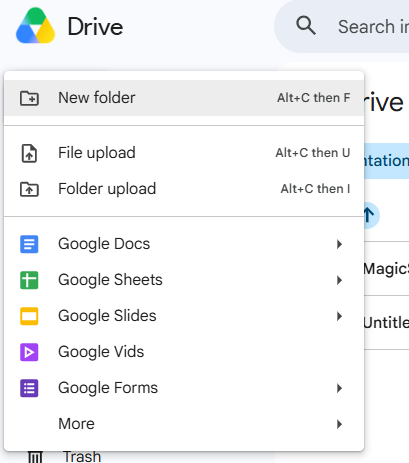
Step 3. Now, New -> File Upload.
Step 4. Now, open the PowerPoint File.
Step 5. Right-click the PPT file in Google Drive
Step 6. Select Open With → Google Slides
Step 7. Google automatically converts the file
Step 8. Click File → Save as Google Slides (if needed)
Method 2: Import PowerPoint Slides Into an Existing Google Slides Presentation
Sometimes you only need selected slides rather than converting an entire presentation. Google Slides provides an import feature for this purpose.
Step 1. Open an empty Google Slides.
Step 2. Click File → Import Slides.
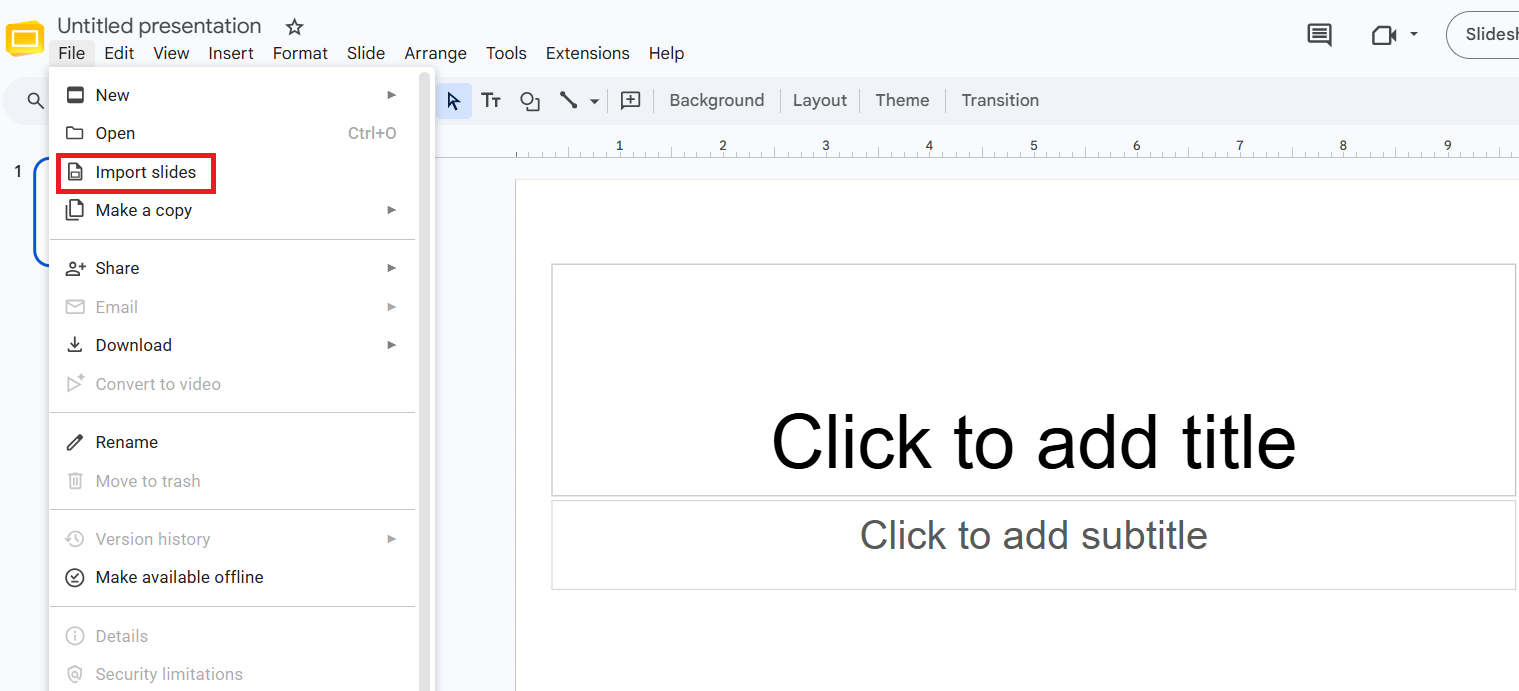
Step 3. Upload Your PowerPoint File by choosing the Upload tab.
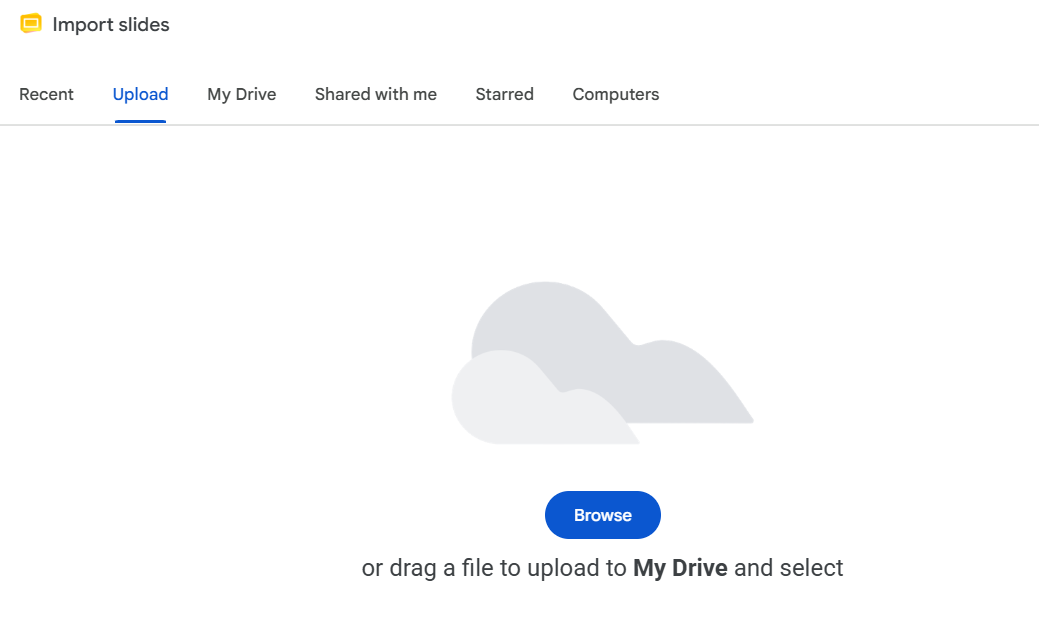
Step 4. Choose File and then copy slides from PPT to Google Slides.
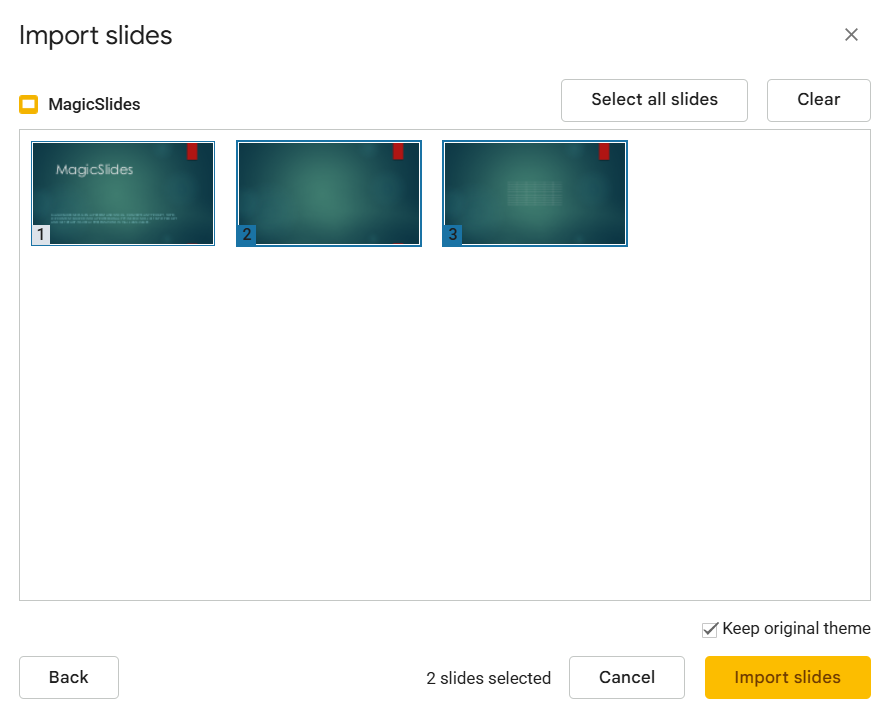
Step 5. Lastly, click on the Import Slides button to transfer PowerPoint to Google Slides.
How to Convert PowerPoint to Google Slides on Android & iPhone
- Step 1. Install Google Drive.
- Step 2. Upload the PPT file.
- Step 3. Tap the uploaded file.
- Step 4. Open with Google Slides.
- Step 5. Save as Google Slides.
What Happens During the Transferring of PPT to Google Slides?
Most of the content of PowerPoint slides transfers successfully when you convert PPT to Google Slides, including.
- Text
- Images
- Tables
- Basic animations
- Charts
- Themes
- Speaker notes
However, some advanced PowerPoint elements may require adjustment.
Examples include:
- Complex animations
- VBA macros
- Certain SmartArt graphics
- Specialized fonts
- Embedded media
Fortunately, most business and educational presentations convert with minimal issues.
Common Formatting Issues After Conversion
1. Font Replacements
Google Slides may substitute unsupported fonts. So, it’s better to use fonts such as:-
- Arial
- Roboto
- Open Sans
- Calibri
- Montserrat
2. Animation Differences
PowerPoint offers more advanced animation options than Google Slides. It’s advised to check the animations and effects before presenting.
3. Image Alignment Changes
Occasionally, images shift slightly after conversion. Therefore, perform a slide-by-slide review after importing.
4. Embedded Video Problems
Videos embedded within PowerPoint may not transfer correctly. So, upload videos separately and insert them directly into Google Slides.
Best Practices Before Converting PowerPoint Files
To ensure a smooth conversion process and minimize formatting issues, it’s a good idea to prepare your presentation before uploading it to Google Slides. Following these best practices can help preserve the original appearance and functionality of your slides.
- Use standard fonts whenever possible to avoid font substitutions after conversion.
- Compress large images to reduce file size and improve upload speed.
- Save your presentation in PPTX format, as it offers better compatibility with Google Slides.
- Simplify complex animations and transitions, since some PowerPoint effects may not be fully supported.
- Create a backup of the original PowerPoint file before making any changes.
- Review slide formatting after conversion to check for layout, spacing, or alignment issues.
- Test videos, animations, and hyperlinks to ensure they work correctly in Google Slides.
Taking a few minutes to prepare your PowerPoint presentation before conversion can save time later and help ensure that your slides look professional and function as intended in Google Slides.
Create Presentations Without Starting From Scratch
Converting a PowerPoint presentation to Google Slides is useful when you already have a presentation file. But what if you need to create an entirely new presentation from scratch?
Traditionally, building a presentation involves researching the topic, organizing content, designing slides, selecting visuals, and formatting layouts. Depending on the complexity of the presentation, this process can take several hours.
Today, many professionals, educators, students, and business teams use AI-powered presentation tools to speed up the workflow. These tools can generate presentation outlines, slide content, and visual designs based on a simple prompt or source material.
For example, you can:
- Convert A text or idea to Presentation
- Documents such as Word files to PPT
- Convert PDFs to a Presentation Slide
- Website URLs to PPT
- YouTube to PPT Slide
- Image to Presentation Slides
Once the presentation is generated, you can further customize it by editing content, changing layouts, adding visuals, and adjusting the design to match your requirements.
AI PPT Maker Tools, such as MagicSlides, help automate much of the presentation-creation process, allowing users to focus more on refining their message rather than on building slides manually.
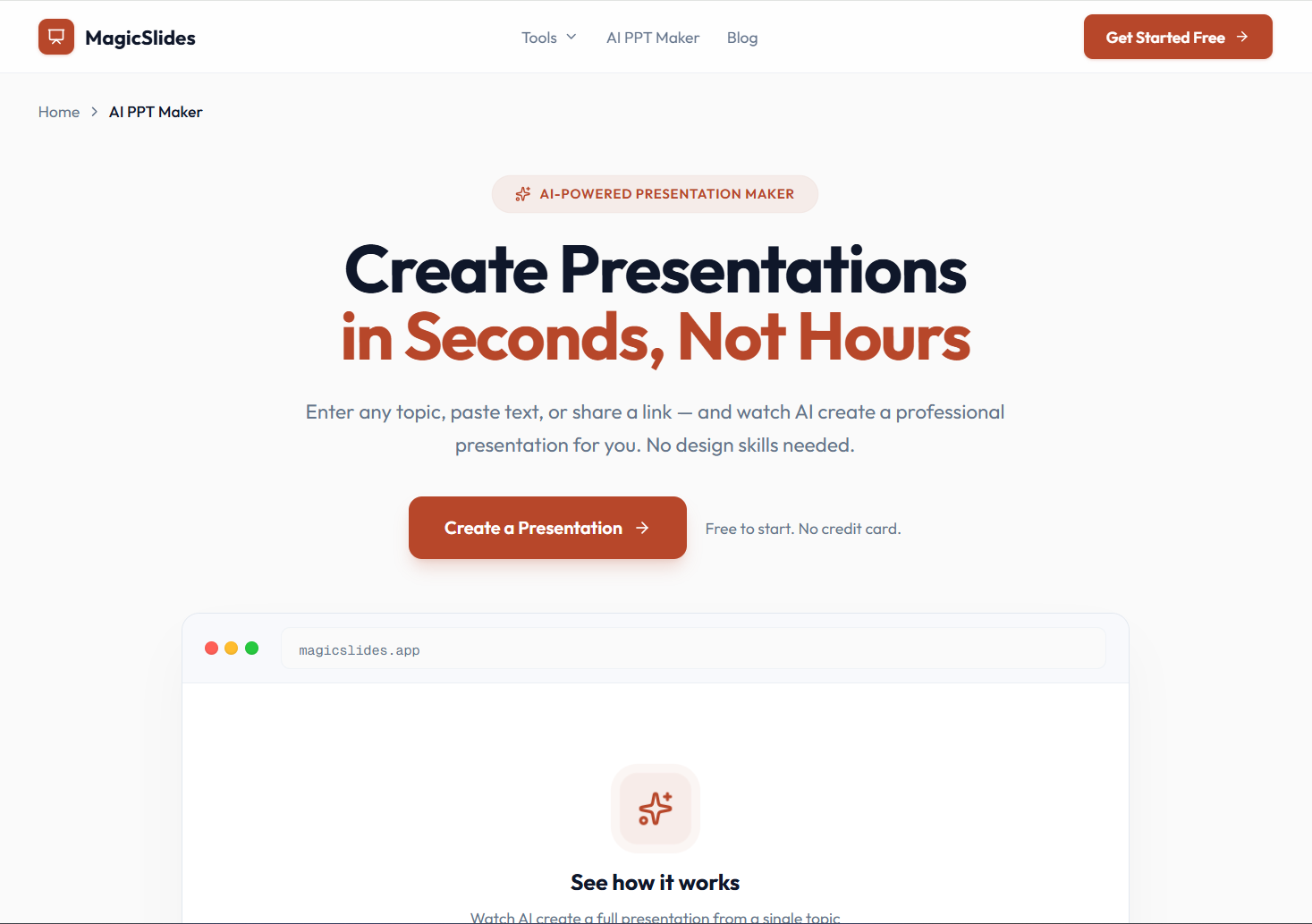
Whether you plan to work in PowerPoint or Google Slides, AI-powered presentation tools can significantly reduce the time required to create professional-looking presentations while maintaining flexibility for further editing and collaboration.
Final Thoughts
Converting a PowerPoint presentation to Google Slides is a simple and effective way to make your presentations more accessible, shareable, and collaborative. Whether you’re working with classmates, colleagues, clients, or remote teams, Google Slides makes it easy to edit and manage presentations from any device with an internet connection.
By following the methods covered in this guide, you can quickly upload, import, and convert PowerPoint files while preserving most of their original formatting. After conversion, take a few moments to review fonts, animations, images, and embedded media to ensure everything appears correctly.
With the right approach, you can seamlessly move from PowerPoint to Google Slides and take advantage of cloud-based collaboration without having to rebuild your presentation from scratch.
Frequently Asked Questions
Q1. Can I convert my PowerPoint to Google Slides for free?
Yes, using Google Drive, one can easily convert PPT files to Google Slides.
Q2. Does Google Slides support PPTX files?
Yes. Google Slides supports both PowerPoint file formats: PPT and PPTX.
Q3. Will I lose formatting when converting my PPT to Google Slides using Google Drive?
Most of the formatting remains the same, but a few require additional manual effort.
Q4. Can I transfer PowerPoint to Google Slides on mobile?
Yes, by using the Google Drive and Google Slides mobile apps, one can achieve the same.